

3·
2 months agoI’ll also add that if you do enable SSH and are stupid enough to expose port 22, then at least make sure you have key-based authentication instead of password authentication and keep your keys safe.

“Life forms. You precious little lifeforms. You tiny little lifeforms. Where are you?”
- Lt. Cmdr Data, Star Trek: Generations
I’ll also add that if you do enable SSH and are stupid enough to expose port 22, then at least make sure you have key-based authentication instead of password authentication and keep your keys safe.
I could never get Gnome Network Displays to work, but it’s worth a shot.
Looks like that site is dead and has being an AI slop domain squat.

XFCE!

In all serious, while I use XFCE on most personal things, if I was pressed to choose between the big two, I think I’d choose KDE over GNOME; in fact, when I had to loan my younger sibling a laptop recently and that laptop was too old to run Windows 11, I put them on Debian with KDE. I think KDE is also my backup plan if major applications start dropping xorg support before XFCE has implemented sufficient Wayland support, although they seem to be making progress.
Out of the box, KDE tends to be more Windows-like and just better for my workflow in general, while GNOME can just be… weird. Like, I don’t quite hate GNOME as much as I used to - I plan on throwing it on an old Surface tablet soon - but like others have said, it’s very opinionated and doesn’t like customization and whatnot. I also resent GNOME in the sense that they tend to make design designs (such as in GTK 4) that reduce ease of interoperability across different open source desktops.
I personally never want to touch anything Adobe ever again, but for my father’s and grandfather’s use cases, they still need it, so if it ends up working well, maybe it’ll finally allow them to use Linux.
That’s just a VM running atop Docker container; convenient, perhaps, but a little misleading to users who don’t understand how Docker works and might think it’s better performance-wise than a VM.
I also recommend dd on a live USB, but with some advice.
First off - and I’m really surprised nobody’s warned you - be EXTREMELY CAREFUL with dd; it is a very powerful tool, but with great potential for data loss. Check your command over and over again to make sure it’s doing what you want before running it, and make sure you have a backup beforehand; it will happily mow over any disk you tell it. Also, do it when you’re fully awake, not at 1 AM or something.
I would call myself an experienced dd user, and even I messed up once recently; I was trying to create a bootable USB when I was really tired. Instead, I overwrote a drive. Luckily, it wasn’t my root drive, and I had a full backup of its contents, so I was able to reformat the drive and restore from backup.
Also, don’t run a bare minumum dd command like dd if=/dev/whateverdevice1 of=/dev/whateverdevice2; it’s going to be an absolute pain in the rear.
dd bs=1M oflag=sync status=progress if=/dev/whateverdevice1 of=/dev/whateverdevice2
bs=1M: The size of block it tries to copy at a time. Play with this a bit, as different drives have different optimal block sizes.oflag=sync: Basically, most operating systems don’t actually write data to the drive right away, but store it in a buffer in RAM to be written later. This is usually fine, but sometimes, you want to be certain that data has actually been written to a drive; this flag turns off that buffering so that when dd is done, the data will for sure actually be on the drive. In lieu of this, you could also just run the sync command afterwards, which forces it to write the current buffer to disk, but I prefer the dd way. It should also do it automatically during shutdown, but I have had cases where a system hangs during shutdown and I’m not certain if syncing is done or not.status=progress: Gives the command a progress bar. It’s just really darn convenient and allows you to see how much time is left, how fast the drive is going, etcetera. I don’t know how anyone uses dd without this. Otherwise, it just shows nothing, and you’re left anxiously wondering when it will be done.if is input drive, of is output drive. I prefer lsblk for looking at the list of drivers.You’ll usually need to run dd with sudo.
Once you do a successful copy, you’ll need to extend your BTRFS partition using GParted or similar. If you have a partition after your main one, like swap, you’ll need to delete the swap partition before extending, then recreate the swap partition and update fstab accordingly.

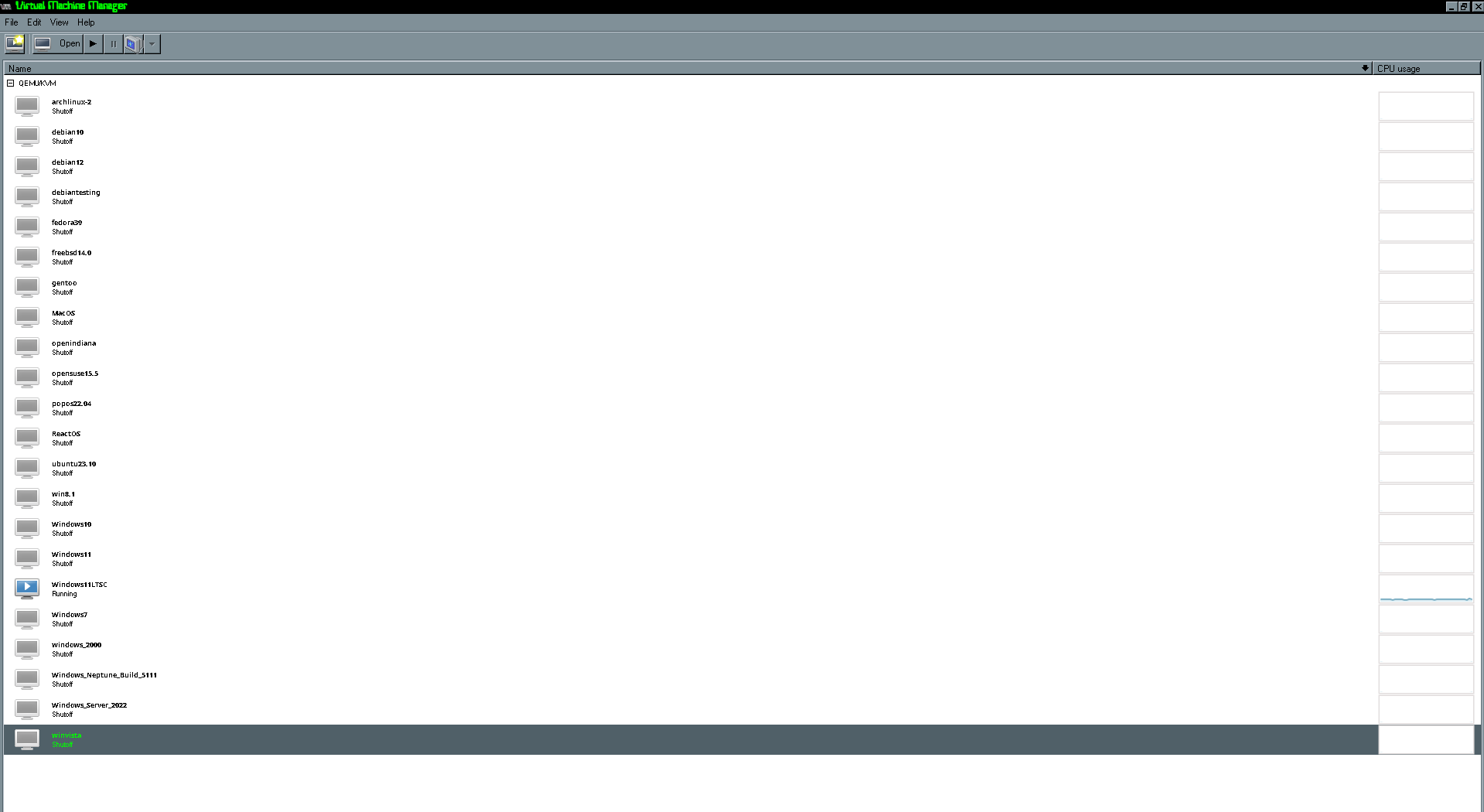
Uploading a gz source archive to a Git repository is absolutely cursed. Still, looks like a cool project.